

Your Inbox Has 50,000+ Unread Emails Because No One Told You This!
I have an embarrassing confession to make:
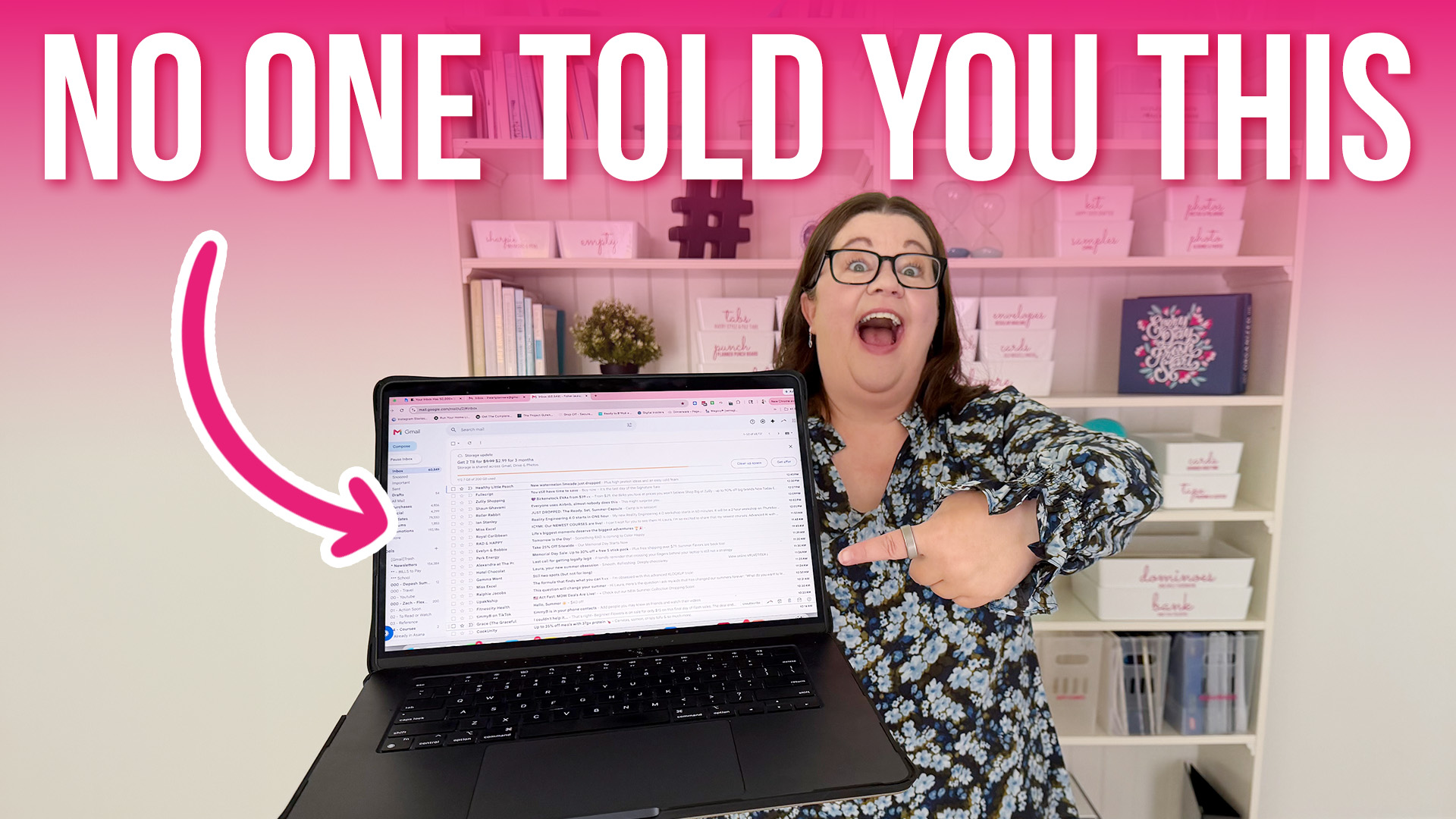
At one point, I had over 60,000 unread emails sitting in my inbox. And honestly? I wasn’t even stressed about it.
Not because I’m naturally organized. Not because I had some fancy system. But because I knew exactly how to reset it quickly without spending hours sorting through thousands of emails one by one.
If your inbox feels completely overwhelming, this method is probably going to feel way easier than you expect. Keep reading or watch the video here to take care of this problem in about a minute– seriously!!
First: Accept That You’re Probably Never Going to Read Those Emails
This is the mindset shift that changes everything. If you have tens of thousands of unread emails sitting in your inbox, you are realistically not going to go back and read them all. And that’s okay!
Most of those emails are:
- Newsletters
- Promotions
- Sales announcements
- Random notifications
- Automated messages
Not urgent personal messages from real people. So instead of trying to “catch up,” we’re going to do something much more effective:
Declare email bankruptcy.
Option 1: Delete Everything
Technically, you could simply delete all your emails. Honestly, for most people, almost nothing bad would happen.
But let’s be real…Most of us are way too nervous to do that. I know I am! So instead, there’s a much safer option that works almost just as well.
Option 2: Archive Everything (This Is What I Recommend)
Instead of deleting everything, archive it. This is the magic trick. Archiving removes emails from your inbox without permanently deleting them. They still exist if you ever need to search for something later.
That means:
- Your inbox becomes manageable again
- Your emails are still searchable
- You don’t lose important information
- You get a fresh start instantly
And the process is shockingly fast.
How to Archive Your Entire Inbox in Gmail
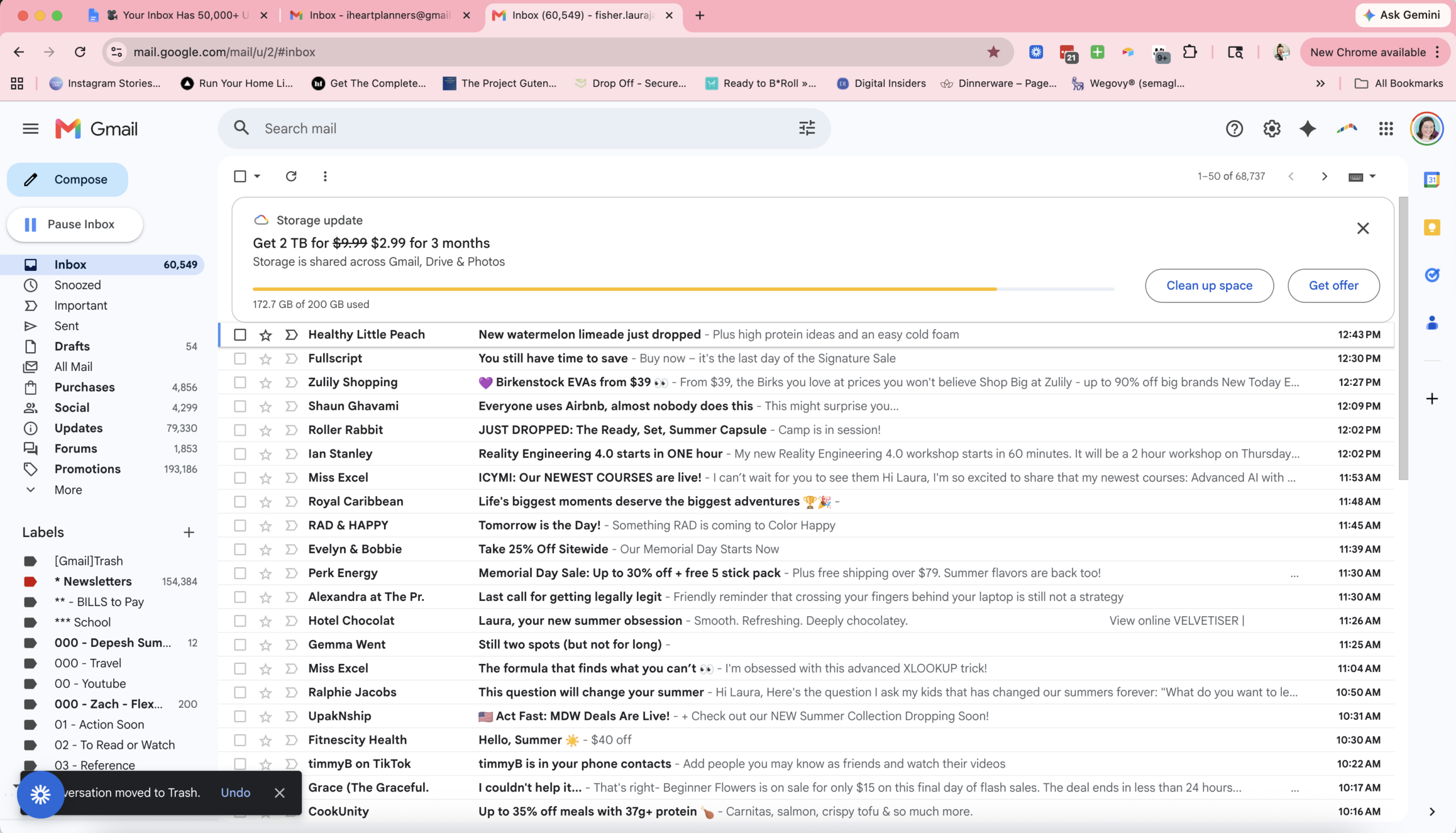
Here’s exactly how to do it in Gmail:
Step 1: Open Your Inbox
Go to your inbox and click the checkbox at the top of your email list. This selects the emails on the current page.
Step 2: Select Everything
After selecting the first page, Gmail will usually give you another option that says something like:
“Select all conversations in Inbox.”
Click that.
Now Gmail is selecting everything in your inbox, not just the first page.
Step 3: Click Archive
Now press the archive button.
That’s it. Seriously!
Gmail may warn you that you’re about to archive a large number of emails. Confirm it and let it process. If you have a huge inbox, it may take a while for everything to disappear completely. But it’s working.
What Happens to Your Emails After You Archive Them?
This is the part people panic about. Your emails are not gone. They’re simply removed from the inbox view.
In Gmail, they move into “All Mail.”
So if you ever need:
- A receipt
- An old message
- An order confirmation
- A travel email
- A login link
You can still search for it later. Nothing is lost. Your inbox is just no longer drowning in clutter.
The Real Goal: Reduce Future Email Overload
Resetting your inbox is the fast part. The real improvement happens when you stop the flood of unnecessary emails coming in every day. And honestly, this part matters even more.
Start Unsubscribing Aggressively

Most inbox overload comes from newsletters and promotional emails.
So when you see one you no longer care about:
- Unsubscribe immediately
That’s it.
You do not need:
- Every store sale notification
- Every “limited-time offer”
- Every random marketing email
- Every brand update
Ask yourself:
“Would I actually notice if I stopped getting these?”
Usually the answer is no.
Delete Entire Batches of Old Newsletters at Once
Once you unsubscribe, you can bulk delete old emails from that sender.
This is one of the fastest ways to free up storage space too.
Here’s the basic idea:
- Copy the sender’s email address
- Paste it into Gmail’s search bar
- Search
- Select all
- Delete them in bulk
Done.
That can eliminate hundreds or thousands of emails in seconds.
One Important Warning Before Bulk Deleting
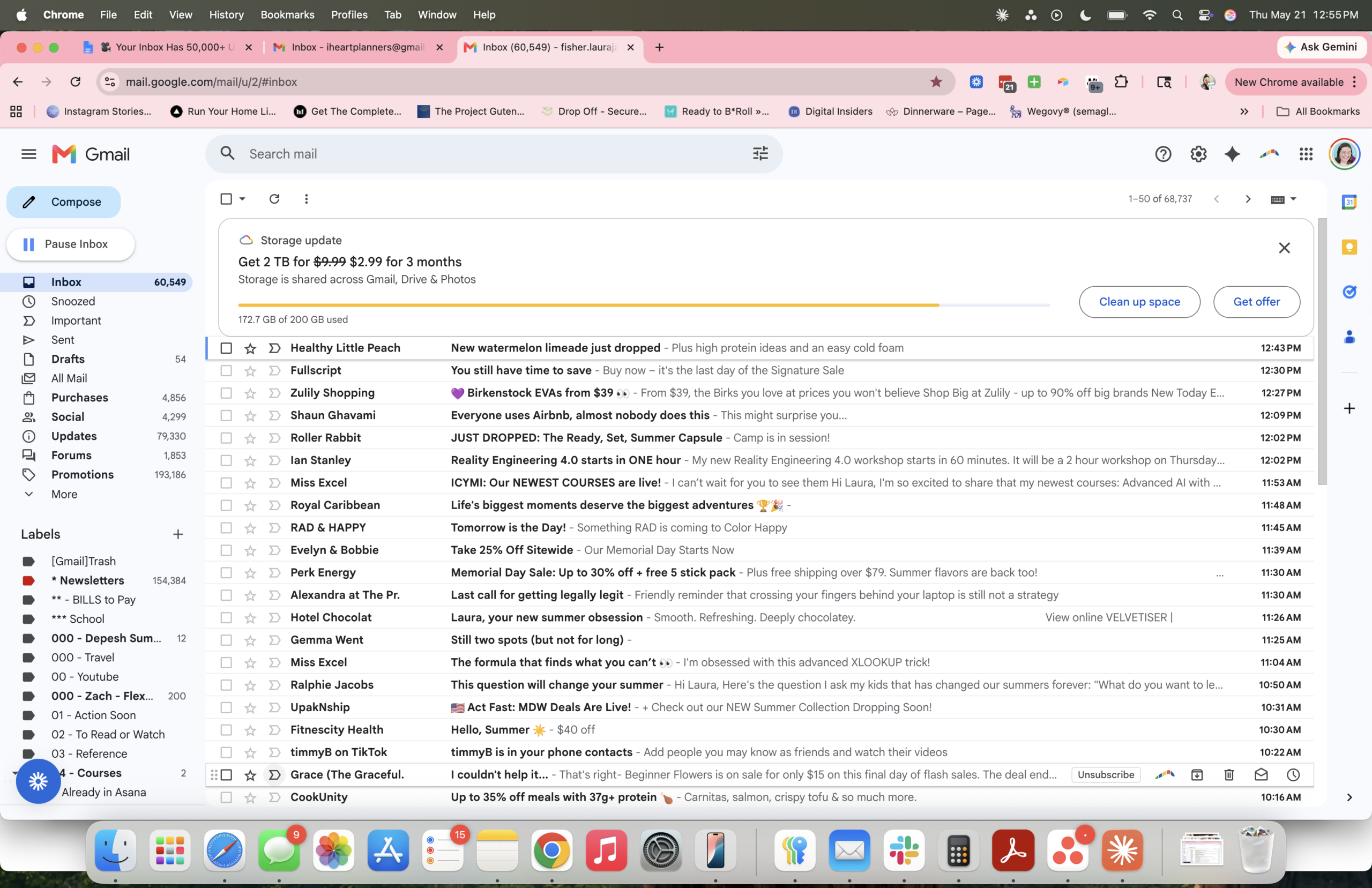
Be careful with companies where:
- You’ve purchased products
- You may need receipts
- You may need login information
- Purchase confirmations come from the same address as newsletters
For example:
- Online courses
- Shopping receipts
- Memberships
- Travel confirmations
Sometimes those important emails come from the same address as promotional emails.
So double-check before deleting everything permanently.
Create Filters for Emails You Still Want
Sometimes you do want to keep getting emails from a company…
You just don’t want them cluttering your inbox.
This is where filters become incredibly helpful.
For example:
- Favorite stores
- Hobby newsletters
- Craft inspiration
- Recipe emails
- Organizing ideas
You may still enjoy those.
You just don’t need them sitting in your inbox demanding attention all day.
How to Filter Newsletters Automatically in Gmail
In Gmail, you can create a filter that:
- Automatically skips the inbox
- Applies a label
- Keeps newsletters organized elsewhere
That means:
- You still receive the emails
- You can browse them later
- Your inbox stays cleaner
This is one of the biggest email habits that reduces overwhelm long term.
Create a “Newsletters” Folder or Label
One simple strategy is creating a label called:
- Newsletters
Then anytime you want to read emails casually, you can intentionally go browse that folder instead of having your inbox constantly interrupted.
This creates a huge mental difference.
Your inbox becomes:
- Important emails
- Real people
- Action items
Not endless noise.
Progress Happens Faster Than You Think
The nice thing about this system is you don’t have to spend hours doing it all at once.
You can:
- Unsubscribe from a few senders per day
- Delete a few bulk groups each evening
- Create filters gradually
And over time, the volume drops dramatically.
Even just spending:
- 5 minutes waiting somewhere
- A few minutes while watching TV
- A little time before bed
…can make a huge difference.
And If It Gets Out of Control Again?
Declare email bankruptcy again– Seriously!!
There’s no prize for maintaining a perfect inbox forever. Sometimes life gets busy. Maybe you start signing up for too many things again. Or sometimes you stop filtering emails for a while. That’s normal!
The good news is once you know this reset method, you can always start fresh again in about a minute.




 Copyright 2026, Get Organized HQ.
Alycia Says
This method works in hotmail and outlook, too. Mine is way out of control and due for a purge. I also have a folder labeled receipts where I move the receipts.
Monique Says
Thank you, Laura. This is one email worth keeping!